Direct & render
Direct each line
Select any line to open the Performance Tuning panel. This is where you shape the read: the note the voice follows, the pacing around it, and the voice settings for that character.
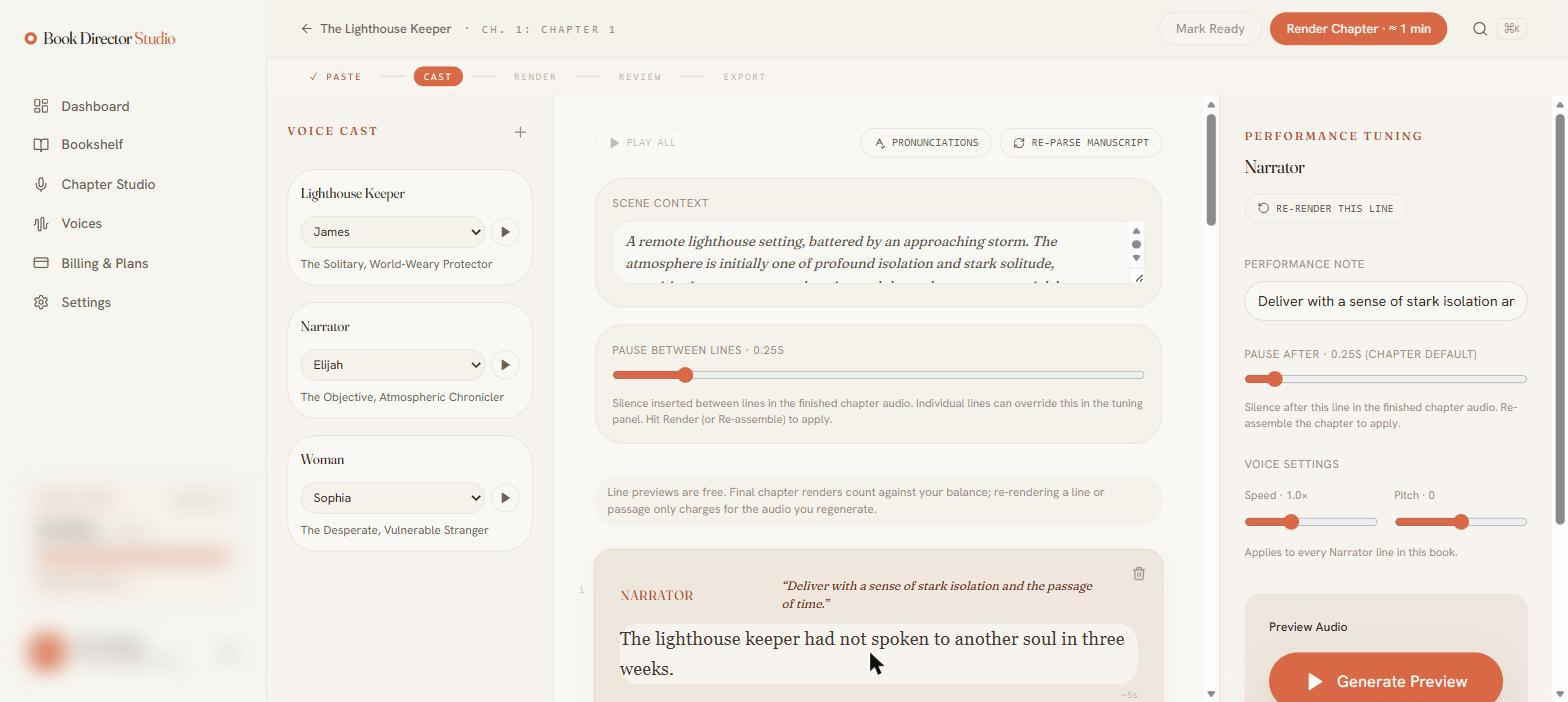
Controls in the panel
| Control | What it does |
|---|---|
| Performance note | The direction the voice follows for this line (tone, emotion, delivery). |
| Pause after | Overrides the chapter’s default silence after this specific line. |
| Speed & pitch | Voice settings that apply to every line spoken by this character in the book. |
| Generate Preview | Renders a free preview of the line so you can hear a change before committing. |
| Re-render this line | Regenerates just this line; charges only for the audio regenerated. |
Direct, don’t dictate: a short note shapes the read more naturally than rewriting the text. Emotional notes speak best from this set — warmly, thoughtfully, sighs, gently, soft laugh, cheerfully — and should match the line’s mood (never a cheerful tag on a grim line). Anything else works for delivery: whispers, very slow, shouting from a distance.
Edit the text or speaker
You can edit a line’s text or reassign its speaker inline. Edited lines are flagged with an “edited — will re-render” badge so you know what still needs a fresh take.
Linked lines (multi-speaker passages)
Consecutive lines can be linked so a back-and-forth exchange renders as a single conversation pass, with overlapping breath and picked-up cues — the rhythm of two people actually talking. Linked groups allow up to two distinct speakers and use the AI voices.
Previews are always free. Final chapter renders count against your balance, and re-rendering a line or passage only charges for the audio you regenerate.