Build your book
Create a book
A book is the container for your chapters, cast, cover, and exports. You can start from just a title and fill in the rest later.
Start a new project
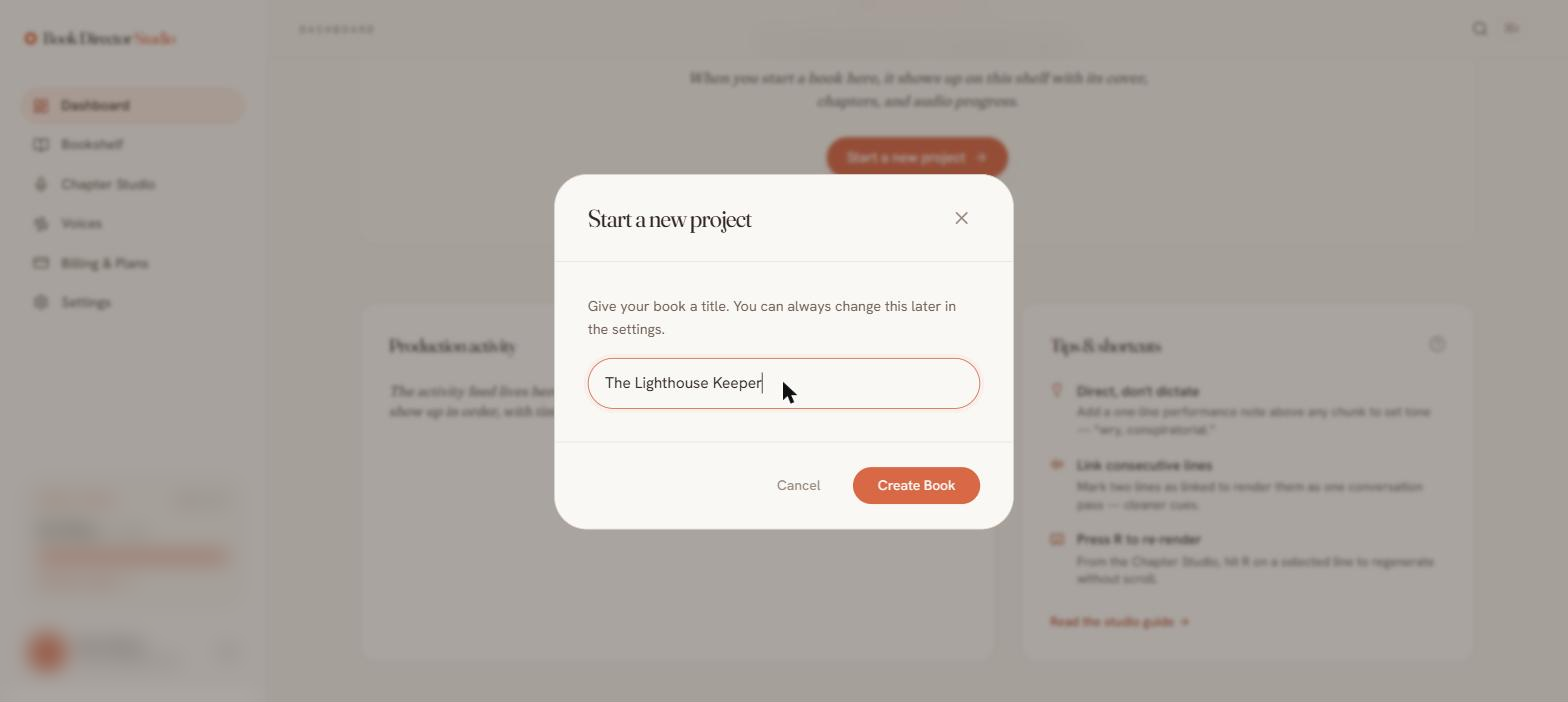
- Select Start a new project on the dashboard or New project on the bookshelf.
- Give the book a title (you can change it later) and choose Create Book.
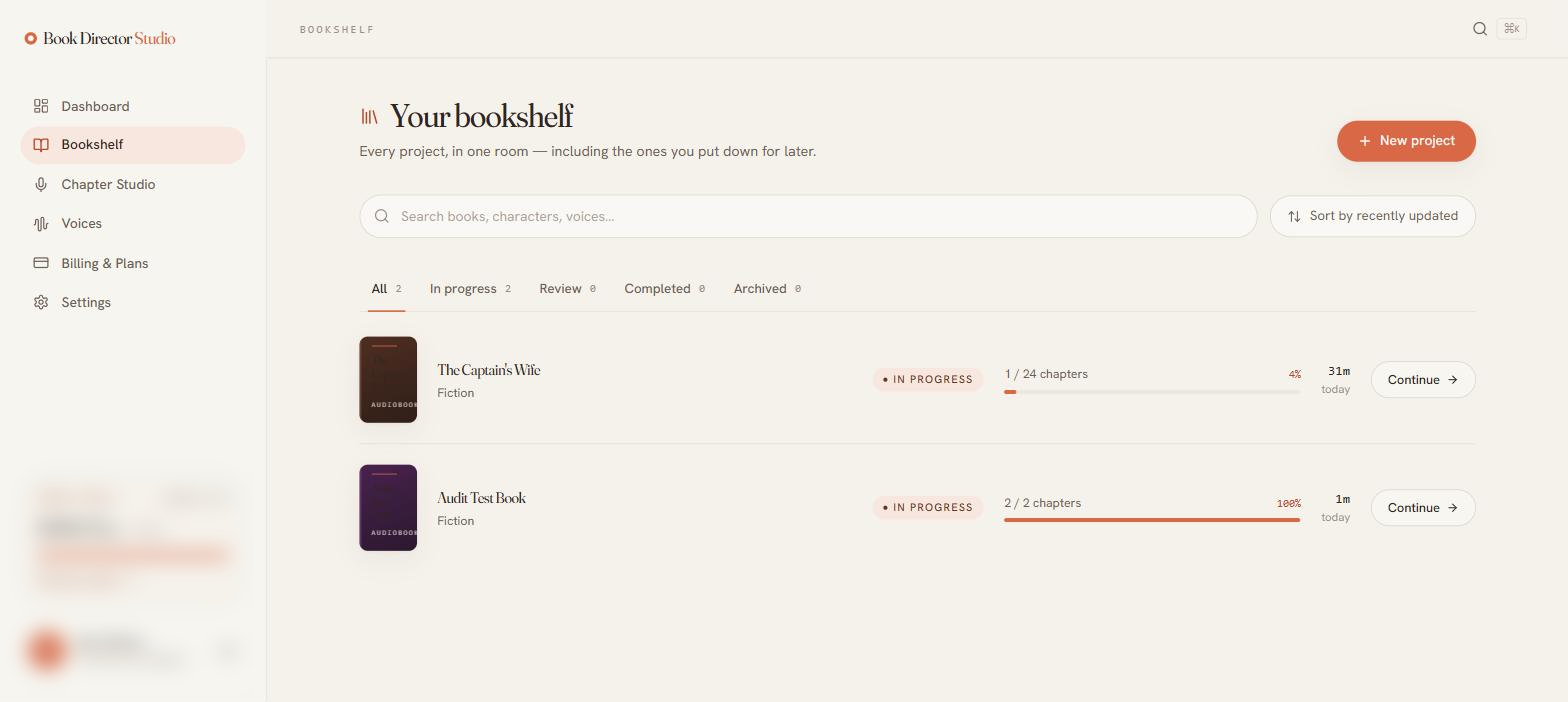
Every project — in progress, in review, completed, or archived — lives on the Bookshelf, where you can search and filter your books and pick up where you left off.
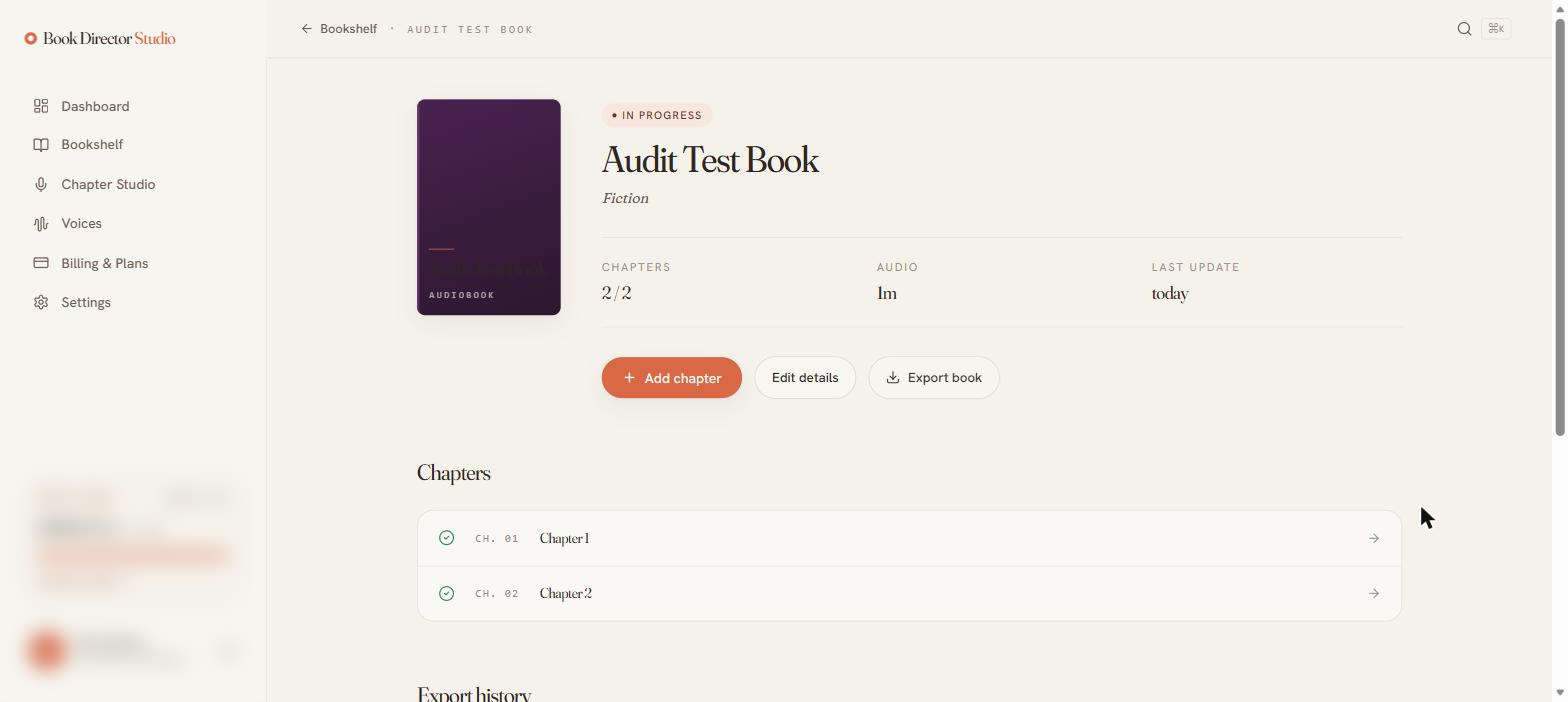
The book page
Each book has its own page showing status, chapter count, total audio, and last update, with actions to add a chapter, edit details, export, archive, or delete.
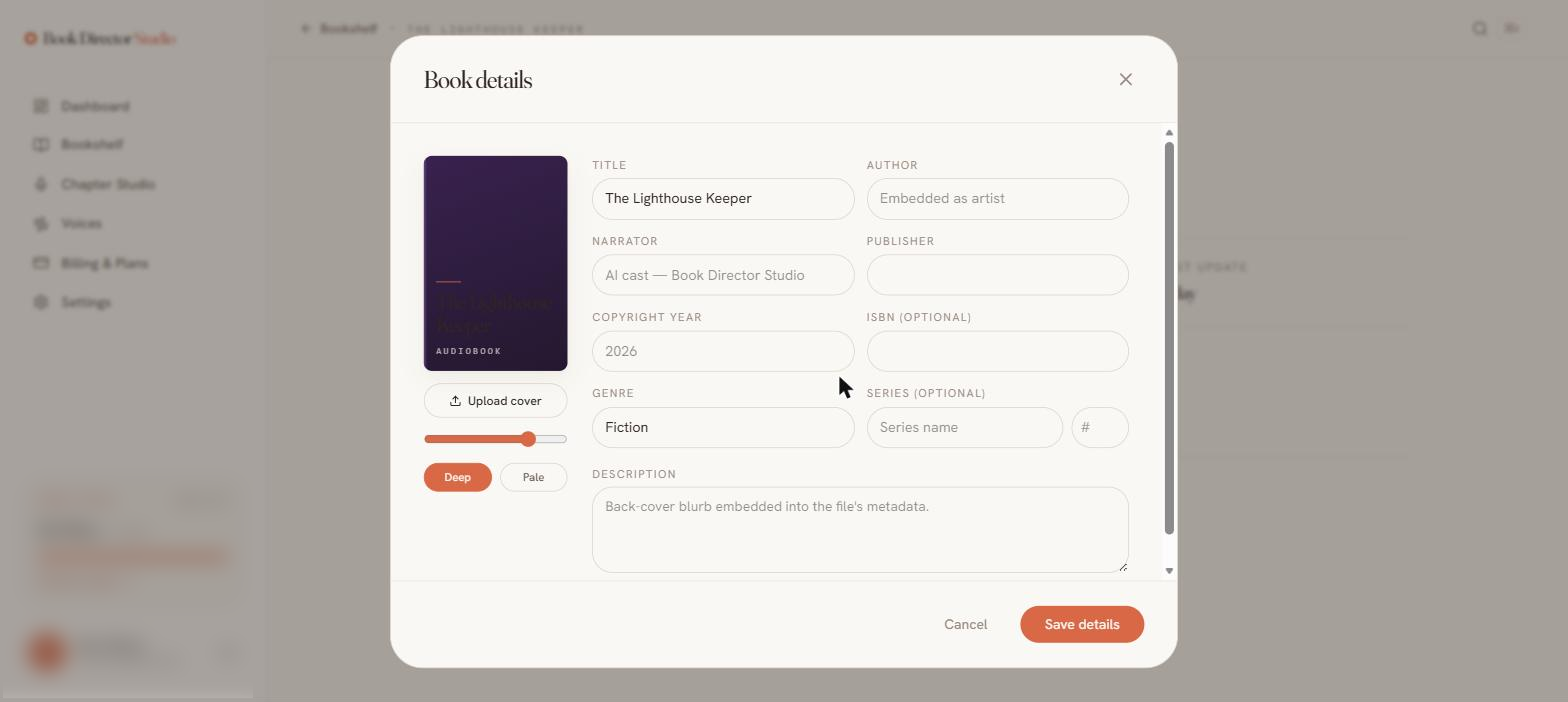
Book details & cover
Choose Edit details to set the metadata that is embedded into your exported audiobook file:
| Field | Notes |
|---|---|
| Title | Shown on the cover and in the file. |
| Author | Embedded as the artist. |
| Narrator | Defaults to “AI cast — Book Director Studio.” |
| Publisher / Copyright year / ISBN | Optional catalog metadata. |
| Genre / Series | Genre defaults to Fiction; series name and number are optional. |
| Description | Back-cover blurb embedded into the file’s metadata. |
You can upload your own cover or use the generated cover, adjusting its color with the slider and choosing a Deep or Pale theme.
Filling in the author and description before export means your finished M4B/MP3 carries proper metadata, which retailers display.
Add a chapter
Select Add first chapter (or Add chapter), name it, and you are taken straight into the Chapter Studio at the Paste step.